Audio and video device settings, virtual background, and other meeting settings
Participants can change the meeting settings before and during the meeting, such as Video, Audio, and other selected settings.
Windows and macOS
Meeting settings in the meeting
If you are in a meeting, you can click the "..." button, select settings, and the meeting settings pop-up window will appear.

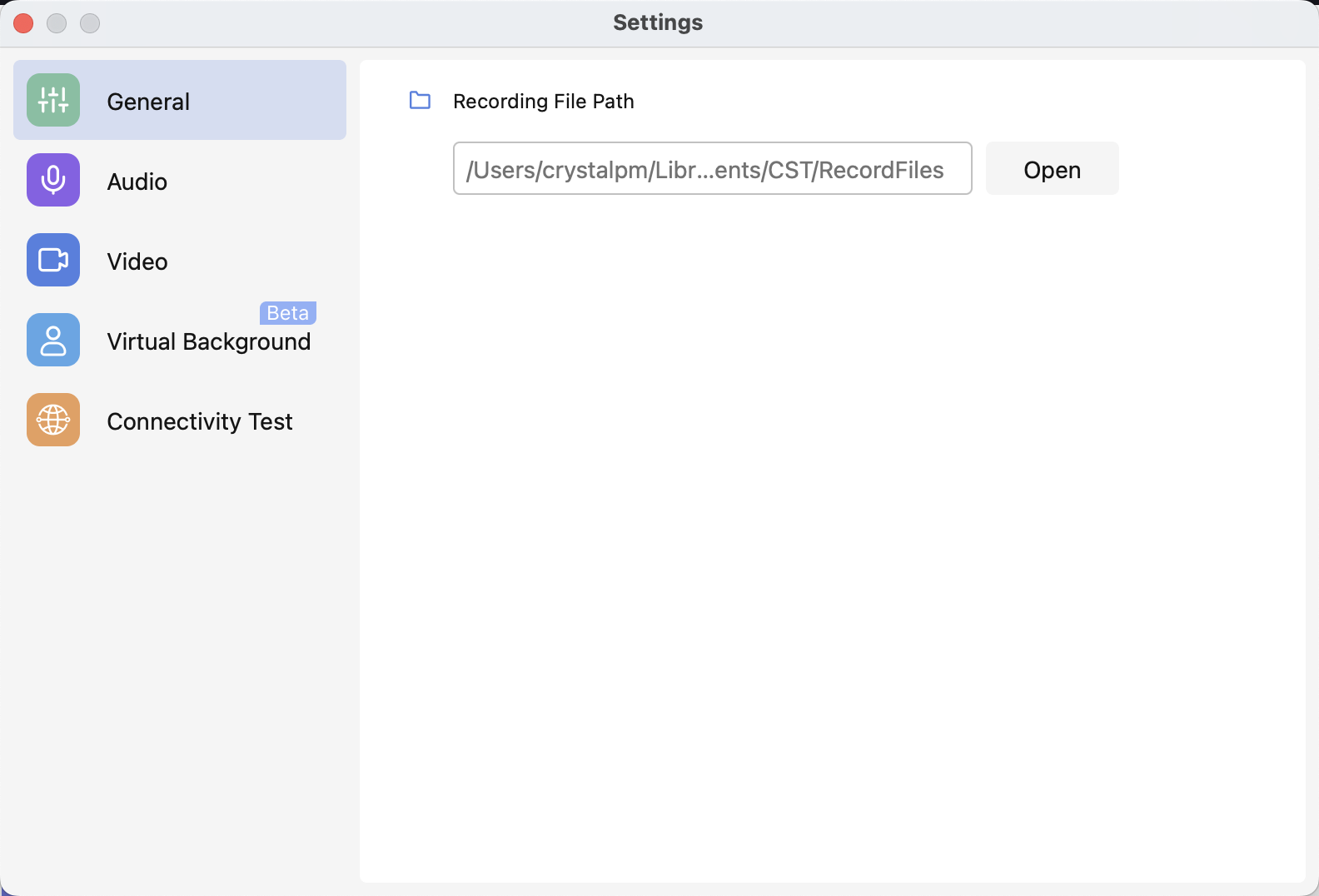
General
You can set the screen Maximum participants displayed per screen in Gallery View.
At the Recording tab, you can check the folder where all your recordings are saved in.
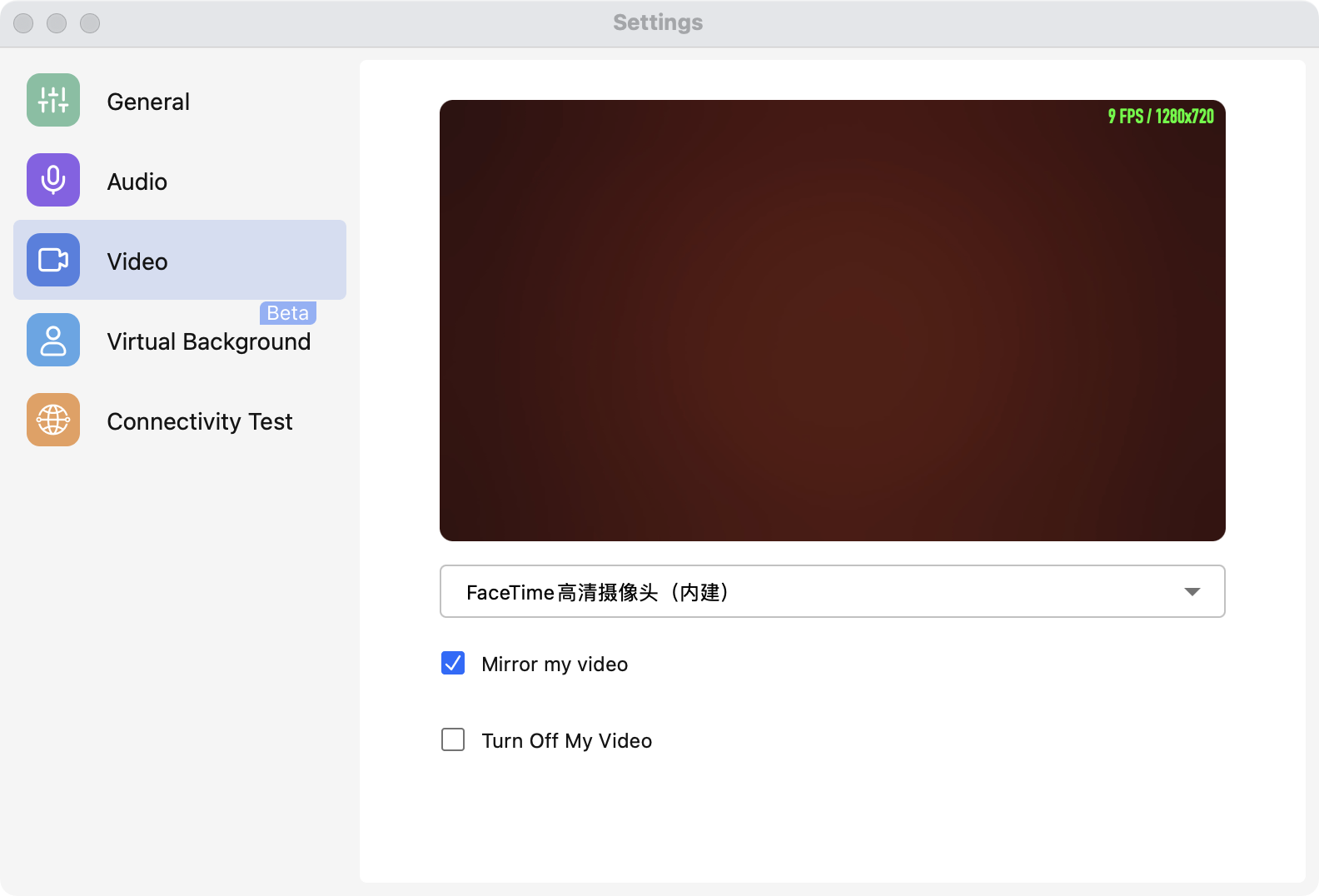
Video
At the video tab, you can select the camera device, enable or disable HD video, and enable or disable Video mirroring.
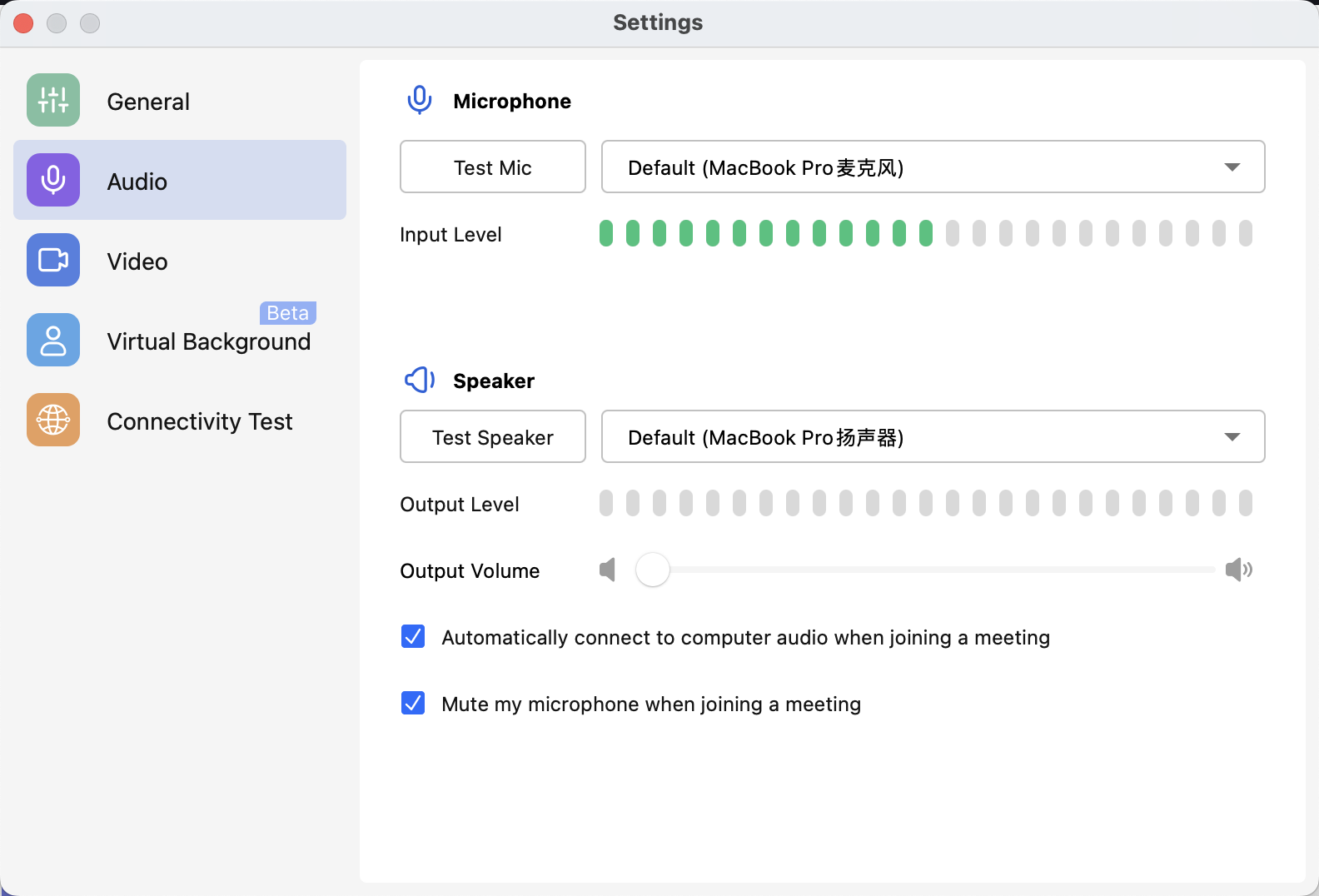
Audio
You can test and select microphone and speaker devices to meet any meeting circumstances.
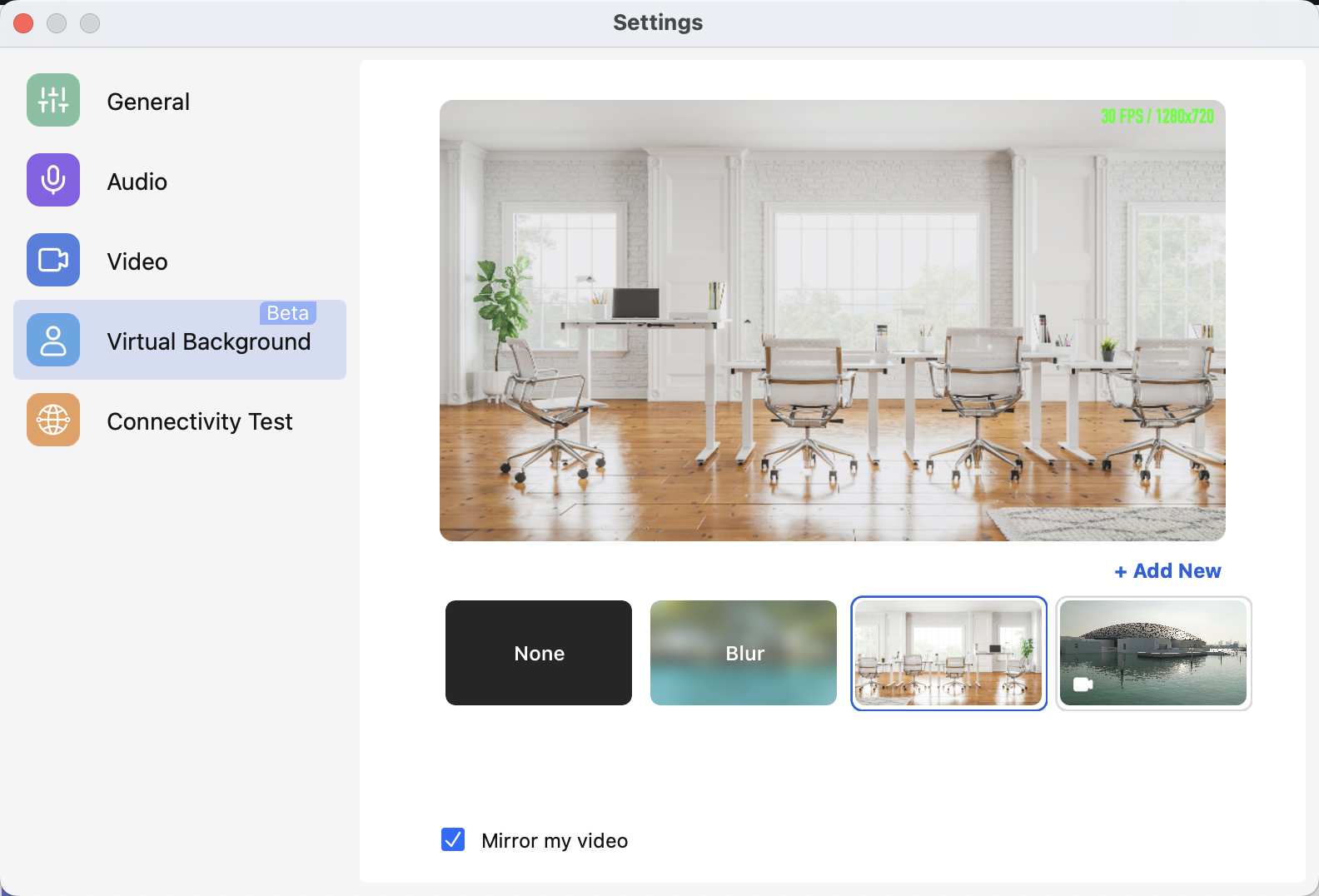
Virtual Background
In the Meeting Settings window, you can choose if you want to set the virtual background for future meetings. Feel free to choose the given image or video as the background, or add a custom one by clicking Add New.
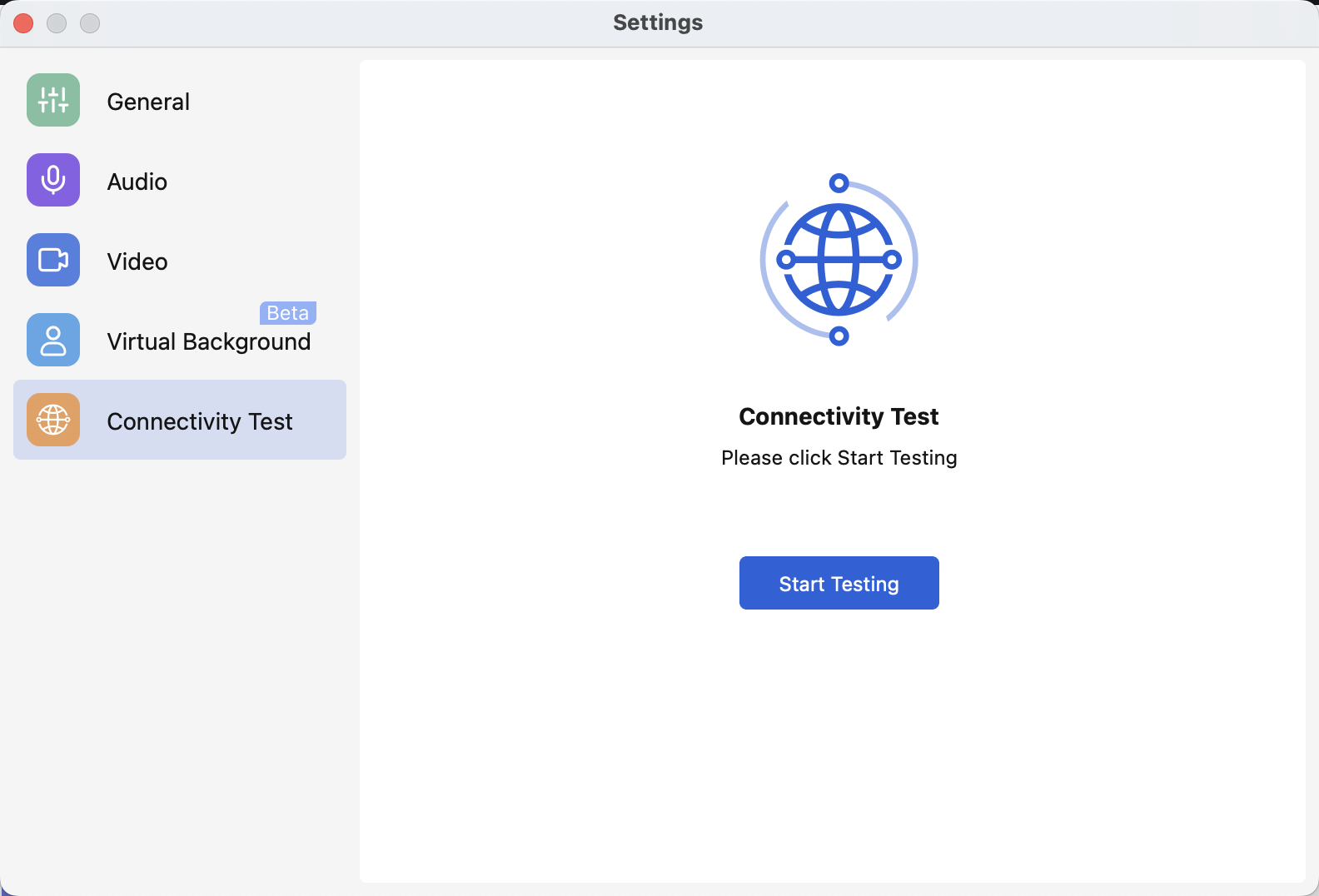
Connectivity Test
In the Meeting Settings window, at the Connectivity Test tab, by clicking Start Testing you can test the connectivity of media, network and server. Bad connectivity affects meeting quality.